shh
Silence your Mac, app by app.
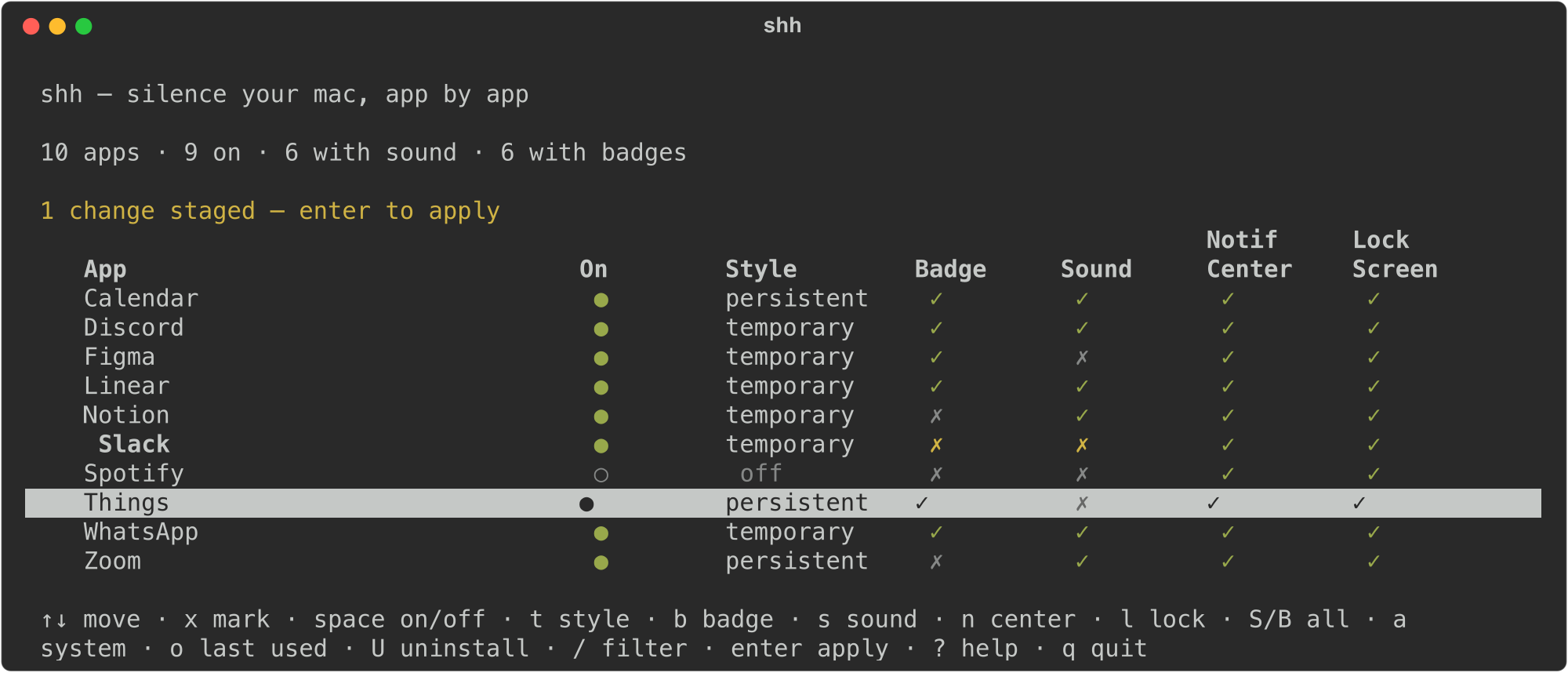
macOS buries notification settings one app at a time in System Settings. shh puts every app on one terminal screen: arrow through the list, flip sound, badges, banners, and lock-screen previews, then apply it all at once. Every write is backed up first, and shh undo puts things back.
Install
With Homebrew:
brew install alexpriest/tap/shhOr with pip (Python 3.11+): pip install shhhhhh. Six h's.
Give it Full Disk Access
Notification settings live in a protected file, so your terminal needs permission to read it.
- Open System Settings → Privacy & Security → Full Disk Access.
- Turn on your terminal app (Terminal, iTerm2, Ghostty, Warp).
- Quit and reopen the terminal.
Skip this and shh walks you through it the first time you run it.
Use it
shhThat opens the screen. The keys:
| ↑ ↓ | move |
| space | notifications on / off |
| t | alert style: temporary → persistent → off |
| s b | sound, badge |
| n l | show in Notification Center, show on Lock Screen |
| S B | sound or badges for every app at once |
| x | mark rows; actions then apply to all marked |
| / | filter by name |
| enter | review and apply |
| ? | everything else |
Or skip the screen and do it in one line:
shh sound off --all            # mute everything
shh sound on Messages          # then let one back in
shh badges off --all           # no more red dots
shh allow off Slack            # Slack, entirely
shh style persistent Calendar  # alerts that stay until dismissed
shh list                       # see where everything stands
shh undo                       # put it all back
Bonus: clean out apps you never open
In the screen, o adds a Last used column. U uninstalls the app under the cursor and sweeps its leftovers out of ~/Library. Everything goes to the Trash after a review screen, never straight to deletion. Apple apps and anything running are refused.
Fine print
macOS only. Tested on macOS 26. shh edits the same settings file System Settings does, then restarts the notification service so changes take effect right away. A backup is saved before every write.
Source on GitHub.